Interactions view
To view in-progress and completed interactions, click Performance > Workspace > Contact Center > Interactions.
To view in-progress and completed interactions, perform the following:
- Click Menu > Analytics > Analytics Workspace.
- In the Default section, search for Interactionsand then click the view name to open it.
Available columns
To view the available columns, see the Interactions view section in the View available columns in performance views by category article.
- To view the consolidated list of available columns in the performance views, see Consolidated view of available columns in performance views.
- To view the list of available columns in the performance views by category, see View available columns in performance views by category.
Extra columns for export
The export contains two extra columns: Full Export Completed, and Partial Result time stamp.
Set a default time zone in the workspace
You can set the default time zone in the analytics workspace before viewing any analytics view.
To set the default time zone in the workspace, follow these steps:
- Click Performance > Workspace.
- Click Menu > Analytics > Analytics Workspace.
- On the left side, from the Time zone drop-down menu, select the required time zone as the default time zone for the analytics workspace.
To view more information about an interaction, click to open it and view the interaction detail page in a new tab or select the required interaction and click View Interactions. You can jump between the interaction tabs to see the interaction list view and the interaction detail view. The title of the interaction detail view tab shows the truncated Interaction ID and has a fixed width as all other tabs in the workspace. When you hover over the tab name, a tooltip with the untruncated Interaction ID appears.
- When switching between the interaction detail view tabs, the recording playback stops working.
- When switching between the interaction detail view tabs, the following features on the interaction detail view tab continue to work as expected:
- Monitor/coach/ a live call
- Interaction download
- Quality management/evaluations
- Schedule Coaching
- Audit Trail tab
- The number of interaction detail view tabs that can be opened at a time is limited to a maximum of 20 tabs. If the user opens a new tab by clicking an interaction while 20 tabs are open, the new interaction detail tab opens in the existing tab.
Click More in the title of the interaction detail view tab and choose the required task to perform any of the following:
| Columns | Description |
|---|---|
| Reload | Reloads the current tab alone. |
| Duplicate | Creates a duplicate copy of the current tab. |
| Close | Closes the current tab alone. |
| Close all tabs | Closes all the open tabs. |
| Close other tabs | Leaves the current tab open and closes all the other open tabs. |
To rename the title of the interaction detail view tab:
- Click Save View on the right side. The Save view pane appears.
- Click the Save To drop-down list and perform one of the following steps:
- To save the view as a new view, click New and in the View Name field, enter a name for the view.
- To overwrite the existing view’s current settings, click the existing view’s name.
- Click Save. The title of the interaction detail view tab changes.
To view interactions with voice transcript content, see Content Search view.
Protect or release recordings
To retain recordings for potential litigation, you can protect interaction recordings from deletion when complying with legal directives.
To protect recordings, follow these steps:
- From the Interactions list, select the interactions that you want to protect.
- Click Protect Recordings. The selected interactions are protected from deletion. For more information, see Protect recordings from deletion for a legal hold directive.
To release recordings, follow these steps:
- From the Interactions list, select the interactions that you want to protect.
- Click Release Recordings. The selected interactions are protected from deletion. For more information, see Protect recordings from deletion for a legal hold directive.
You can copy an interaction’s Conversation ID to the clipboard and use it to filter interactions or share it with others, including Customer Care.

To add multiple interactions to the filters, select the required interactions and click Add to filters.
To navigate through the pages, use the Previous , Next , First , and Last icons on the pagination control. To jump multiple pages at a time, click the First and Last icons.
To save the view with your filter and column settings, click Save.
To export the data in the view, click Export .
This view does not update as new interactions occur. To see new interactions, click Refresh.
For example, in the Interactions view, if an interaction A is transferred into Queue X and Queue Y, then the call transfers count for the interaction A is 2. In the Queue performance view, if an interaction A is transferred into Queue X and Queue Y, the call transfers count in the Queue X is 1.
Customize the view
To show only certain data, customize the Interactions view. For example, you can choose to show only certain columns or filter to see certain types of interactions. Your customizations remain in effect even if you leave and return to the view. You can also save your filter and column settings as a saved view to switch quickly between different data of interest in the same view.
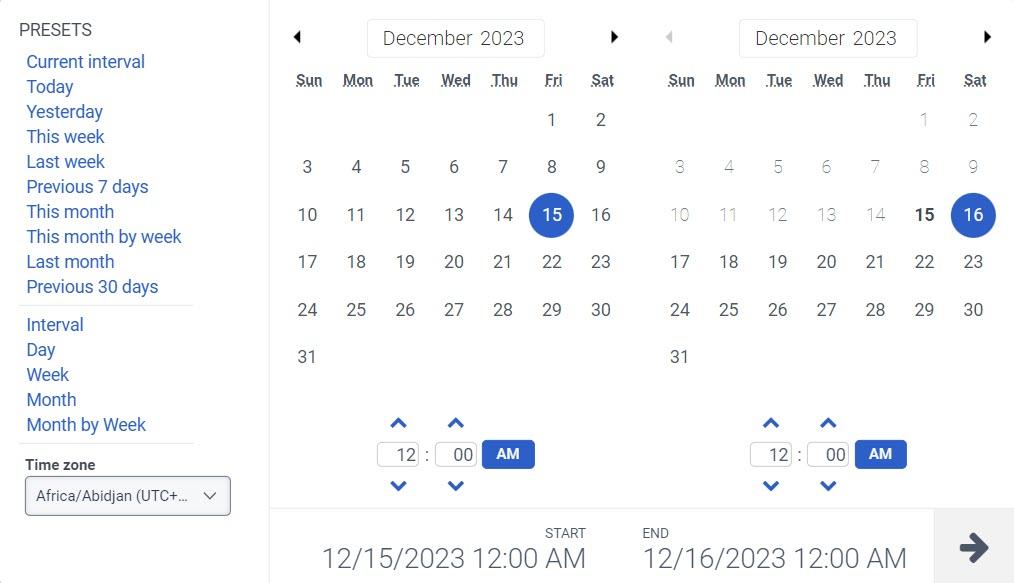
 icon.
icon. of a column, and then drag and drop to reorder it within the column picker.
[NEXT] Was this article helpful?
Get user feedback about articles.