Set up BYOC CCaaS for Salesforce Service Cloud
To set up the BYOC CCaaS in Salesforce using the CX Cloud from Genesys and Salesforce integration, follow these steps:
The BYOC CCaaS package is available through Genesys AppFoundry.
Click the Contact Us option to connect with the Genesys Professional Services team to request access and learn more about the quick start package.
To enable integration between Salesforce and Genesys Cloud, create and configure a Connected App.
Create a Connected App
- On the Setup Home page, search for External Client Apps in the Quick Find box and select Settings under External Client Apps section.
- To create a connected app, turn on Allow creation of connected apps option.
- Click New Connected App.
- Enter the following details for the app:
- Connected App Name – Ensure that you prefix CXCloud for the app name for identification.
- Enable OAuth Settings – Select this option and enter the following details:
- Use digital signatures – Select this option and click Choose File to select the same certificate that was used when setting the contact center in Salesforce Service Cloud Voice. For more information, see Requirements for CX Cloud from Genesys and Salesforce integration.
- Selected OAuth Scopes – Move the following scopes to Selected OAuth Scopes:
- Access Interaction API resources (interaction_api)
- Manage user data via APIs (api)
- Perform requests at any time (refresh_token, offline_access)
- Click Save.
Retrieve the consumer key
- On the Setup Home page, search for Apps in the Quick Find box and select App Manager.
- Select the newly created connected app and click the drop-down button at the right end of the row and select View.
- Under the API (Enable OAuth Settings) section, click Manage Consumer Details.
You’re prompted to verify your identity using one of your registered methods. - Copy and securely store the Consumer Key.
- Click Cancel and return to the connected app.
Update OAuth policies and add permission sets
- On the connected app, click Manage.
- To update OAuth policies, click Edit Policies.
- Under the OAuth Policies section, select Admin approved users are pre-authorized for Permitted Users.
- Click Ok and then Save.
- Under the Permission Sets section, click Manage Permission Sets.
- Click SCRT2 Integration User permission set.
- Under the Apps section of the permission set, click Object Settings.
- Search and open Genesys Cloud CCaaS Events object from the list.
- Click Edit and enable Read and Create permissions to the object.
- Click Save.
Add trusted URLs
Specify the URLs that you trust to interact with your users and network and add the following URLs:
https://cxc-sandbox.genesysinnoapps.netwss://cxc-sandbox.genesysinnoapps.nethttps://cxc-uswe2.genesysinnoapps.comhttps://login.salesforce.com
To add a trusted URL in Salesforce:
- From Setup, search for Trusted URLs in the Quick Find box and select Trusted URLs.
- To add a new trusted URL, click New Trusted URL.
- Enter the URL.
- Under the CSP Directives section, select connect-src (scripts).
- Click Save.
Add Remote Site Settings
Add the following Genesys and Salesforce URLs as remote site settings:
https://cxc-uswe2.genesysinnoapps.comhttps://cxc-sandbox.genesysinnoapps.nethttps://login.salesforce.com
For more information, see Configure Remote Site Settings in the Salesforce documentation.
After installing the BYOC CCaaS package:
- On the Setup Home page in Salesforce, click the App Launcher icon.
- Open Genesys CCaaS Configuration app.
- In the app, click Setup Manager.
- Under Genesys Cloud Configuration, enter the following details:
- Enter the OAuth PKCE Client Id
- Select the Genesys Cloud region from the list.
- Select the appropriate presence status for your deployment.
 Note: Copy and save the Authorized redirect URI for later use. Add the URI to the list of authorized URLs to the OAuth Client in Genesys Cloud. For more information, see Create an OAuth Client for Salesforce Service Cloud Voice.
- Under Salesforce Integration Details, enter the following information:
- OAuth Consumer Key – Enter the consumer key retrieved when you created the connected app.
- Private Key File – Upload the Private Key that was used to create the contact center in Salesforce Service Cloud Voice. For more information, see <link>.
- Salesforce login domain – Specify the login for admin user to whom you have assigned the Contact Center Bring Your Own Channel User permission set.
- Capacity percentage – Enter the appropriate capacity percentage for your deployment. If you are unsure about the capacity percentage, enter 1.00 for Weight.
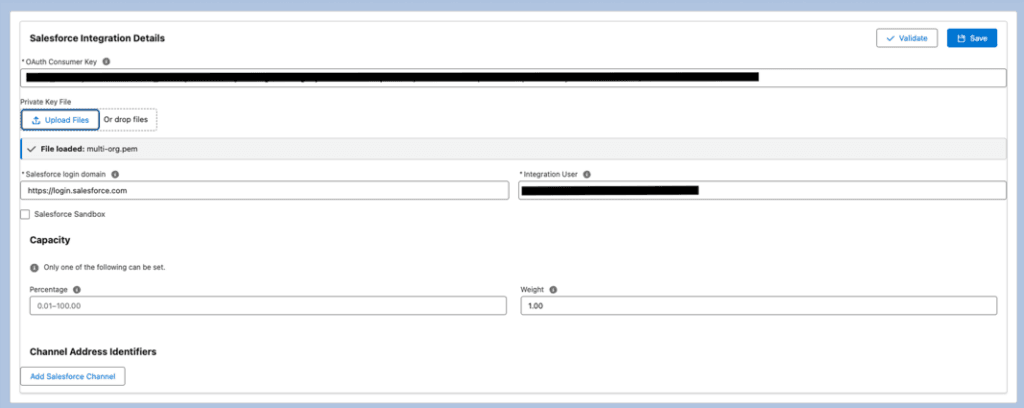
- Click Validate and then Save.
A new CX Cloud CCaaS BYOC registration is created for the Genesys Cloud and Salesforce org.
- On the Setup Home page, search for Messaging in the Quick Find box and select Messaging Settings under Messaging.
- Click New Channel.
- To add a channel, click Start.
- Under the Bring Your Own Channels section, select Genesys Cloud Channel and click Next.
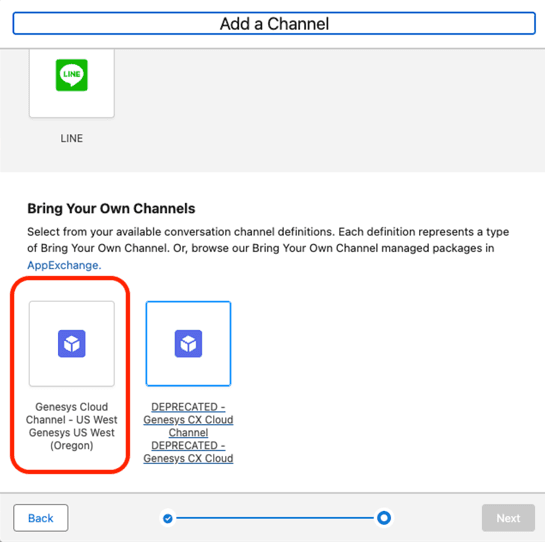
- Select an existing contact center created for Salesforce Service Cloud Voice from the list and click Next.
- Give your Bring Your Own Channel messaging channel a name and click Save.
- Check your Messaging channel settings:
- Under Conversation Channel Definition, check that the name of the Connected App created previously appears correct. If not, click Modify Conversation Channel Definition and select the Connected App created for CX Cloud BYOC CCaaS integration.
- To activate the channel, click Activate.
- Under the Messaging Settings, copy and secure the Channel Address Identifier ID for later use.
- On the Setup Home page in Salesforce, click the App Launcher icon.
- Open Genesys CCaaS Configuration app.
- In the app, click Setup Manager.
- Click Add Salesforce Channel.
- Paste the Channel Address ID that you copied and saved earlier and click Save.
- On the Setup Home page, search for App Builder in the Quick Find box and select Lightning App Builder.
- Click New.
- Select Record Page and click Next.
- Enter a label for the record page.
- From the Object list, select MessagingSession and click Next.
- Select an appropriate layout from the given template and click Done.
- Drag and drop the following components to the layout:
- Enhanced Conversation (Standard)
- Genesys Cloud Message Controls (Custom)
- Einstein Replies (Standard)
- Einstein Field Recommendations (Standard)
- Record Detail (Standard)
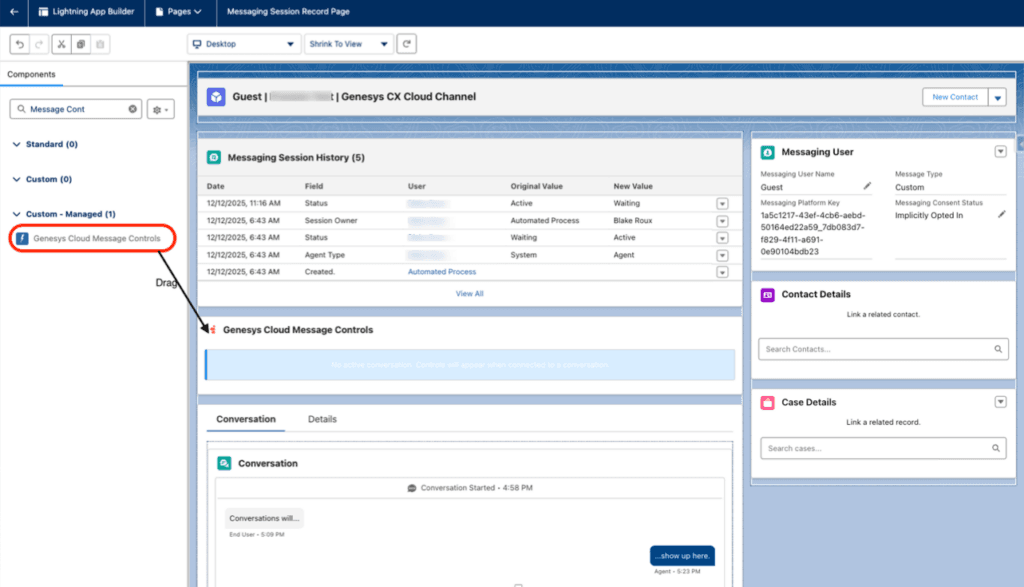
- Configure the Enhanced Conversation properties:
- Select Hide voice message action option.
- Click Save and then Activate.
- Select the appropriate assignment for the record page and click Close.
You can add the following Genesys Cloud custom components to the Lightning app:
[NEXT] Was this article helpful?
Get user feedback about articles.