Open the Audit Viewer
To open the Audit Viewer, do one of the following:
- Open the full-page viewer.
Click Admin. Under Troubleshooting, click Audit Viewer.
Click Menu > IT and Integrations > Audit Viewer. The full-page viewer opens, which enables you to click an individual row for a more detailed view of an audit entry.
- Open a small version of the Audit Viewer:
At the bottom of any Admin page under Menu > IT and Integrations , hover over and click the grey Show audits footer bar.
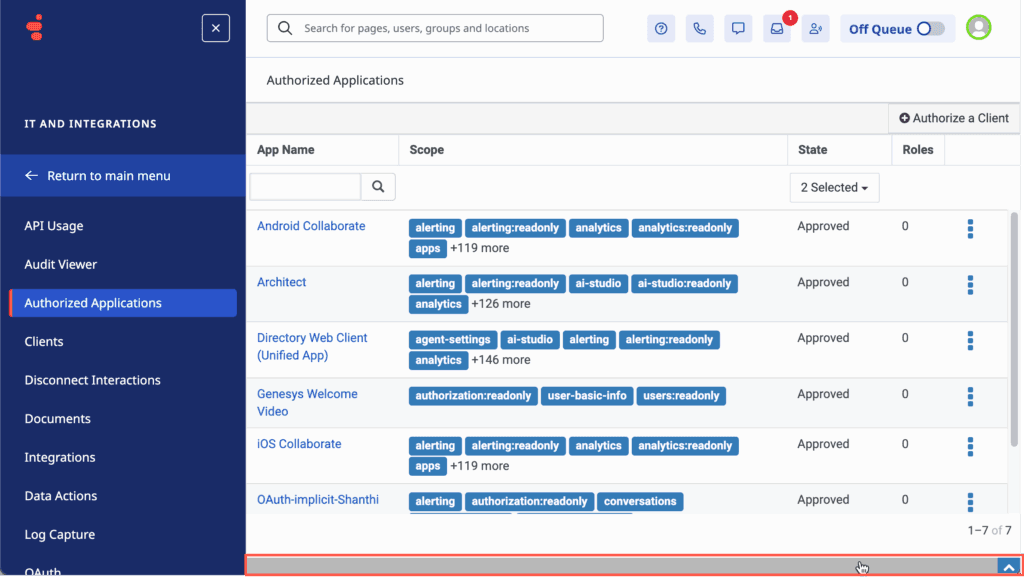 Authorized Applications page" class="alignnone wp-image-401028" srcset="https://help.mypurecloud.com/wp-content/uploads/2025/10/Show-audits-footer-1024x577.png 1024w, https://help.mypurecloud.com/wp-content/uploads/2025/10/Show-audits-footer-300x169.png 300w, https://help.mypurecloud.com/wp-content/uploads/2025/10/Show-audits-footer-768x433.png 768w, https://help.mypurecloud.com/wp-content/uploads/2025/10/Show-audits-footer-1536x866.png 1536w, https://help.mypurecloud.com/wp-content/uploads/2025/10/Show-audits-footer-2048x1155.png 2048w" sizes="auto, (max-width: 1024px) 100vw, 1024px">
When you click Show audits footer, a small version of the audit log viewer opens.
To open the full-page Audit Viewer and view more details, click the Link to full page audit viewer icon. To close the audits footer, click the Hide audits footer bar.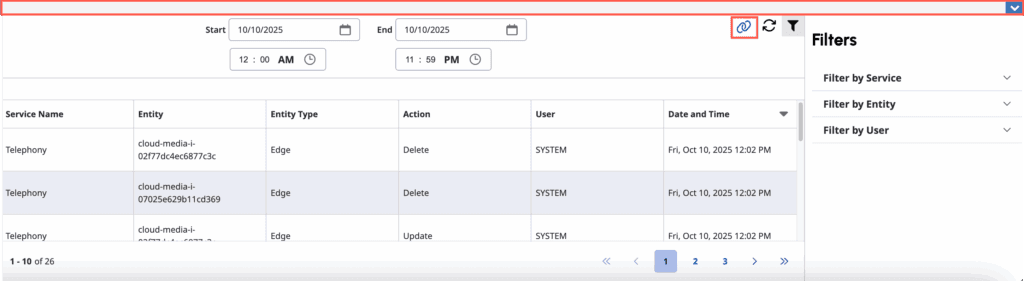
The audit viewer displays all events for the current day by default. For more information on viewing audit events and event details, see View audit events.
[NEXT] Was this article helpful?
Get user feedback about articles.