Channel Insights dashboard
The following permissions:
- analytics > botAggregate > view
- analytics > conversationAggregate > view
- analytics > speechAndTextAnalyticsAggregates > view
- analytics > resolutionAggregate > view
To view virtual agent cards:
- analytics > summaryAggregate > view
- analytics > knowledgeAggregate > view
- analytics > flowAggregate > view
Note: If the Copilot permission is not enabled, Genesys Cloud displays Agent Assist data. Ensure that the following products are enabled in your organization.
- Product > agentCopilot (to view Copilot cards)
- Product > virtualAgent
The Channel Insights dashboard provides a consolidated, cross‑channel view of how customer interactions flow through Genesys Cloud. Using a unified analytics framework, supervisors can monitor channel adoption, interaction volumes, agent performance, channel efficiency, and outcomes across different digital channels, including voice, digital messaging, email, and bots.
This dashboard enables contact center managers to perform these actions:
- Understand channel-specific engagement trends
- Monitor interaction flow and performance
- Manage demand across channels
- Identify opportunities to improve containment, routing strategies, and customer experience
The dashboard includes two tabs—Adoption and Performance—that provide both high-level insights and detailed operational metrics to support data-driven decision-making.
Access the Channel Insights dashboard
- Click Menu > Analytics > Analytics Workspace.
- In the Default section, search for Channel Insights and then click the view name to open it.
By default, the Adoption tab appears. To analyze detailed operational metrics, click the Performance tab.
Set a default time zone in the workspace
You can set the default time zone in the analytics workspace before viewing any analytics view.
To set the default time zone in the workspace, follow these steps:
- Click Performance > Workspace.
- Click Menu > Analytics > Analytics Workspace.
- On the left side, from the Time zone drop-down menu, select the required time zone as the default time zone for the analytics workspace.
Channel Insights dashboard overview
The Channel Insights dashboard provides insights into interaction flow performance across digital channels. It helps contact center administrators analyze trends and act to optimize channel performance. The dashboard displays the date and time when the data was last updated.
Tabs in the Channel Insights dashboard
Adoption tab
The Adoption tab provides a high-level view of channel performance and interaction distribution. Use this tab to understand overall trends, channel usage, and resolution effectiveness. This view also includes key performance indicators, including containment rate, transfer rate, escalation rate, abandoned rate, and error rate.
Performance tab
The Performance Tab provides operational insights into channel effectiveness for messaging channels including chat, Facebook, Instagram, Line, Open, SMS, Web Messaging, WhatsApp, and X. Use this tab to evaluate responsiveness, queue efficiency, and handling performance over time. Metrics associated with email channel are not included in this tab.
Refresh, save, or reset the dashboard view
- To view the most current data, click Refresh .
- To save the dashboard, click Save View.
- To restore the dashboard view to the default column settings, click Reset view to defaults .
To customize analytics views, use the date filter.
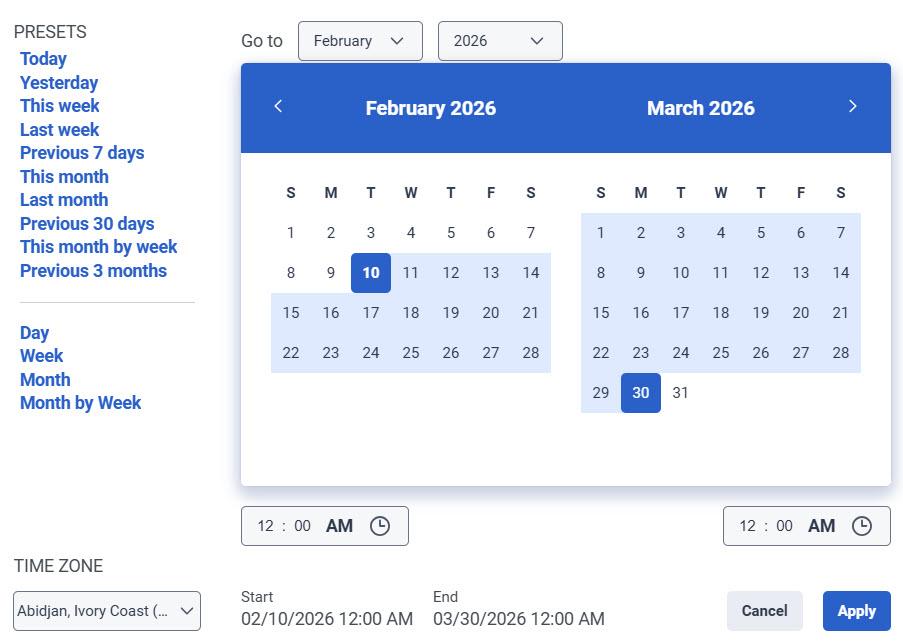
To filter metrics by date or configure a custom date range, use presets. When filtering metrics for this view, select any custom date range up to 13 months.
To use a preset to filter metrics, complete the following steps:
- To display the date filter, click the date.
- In the Presets list, select a preset date option.
Date presets
| Presets | Description |
|---|---|
| Today | Shows data for the time period that includes the current interval. |
| Yesterday | Shows data for the previous day. |
| This week | Shows data for a Sunday through Saturday time period. |
| Last week | Shows data for the previous week, Sunday through Saturday. |
| Previous 7 days | Shows data for the previous seven days. |
| This month | Shows data for the current month, with no extra days. |
| Last month | Shows data for the previous calendar month with no extra days. |
| Previous 30 days | Shows data for the previous 30 days. |
| This month by week | Shows data for the current calendar month starting on Sunday and ending on Saturday, including extra days if the month does not start on Sunday or end on Saturday. |
| Previous 3 months | Shows data for the previous 3 months. For example, Nov 1, 2022 – Jan 31, 2023. |
| Day | Shows data for a single 24-hour day. |
| Week | Shows data for a Sunday through Saturday time period. |
| Month | Shows data for the exact month with no extra days. If the current month is selected, you can see the data up to the current date. |
| Month by Week | Shows data for a calendar month starting on Sunday and ending on Saturday, including extra days if the month does not start on Sunday or end on Saturday. |
- To use a custom date range to filter metrics, complete the following steps:
- Click the date to display the date filter.
- Select a start date and an end date on the calendar.
- Click Apply.
- To view data for a different time period using the same date presets, click the arrows on either side of the date display. For example, to view data for the previous day, click the Day preset, and then click the arrow on the left side of the date.
- To view data for a different time zone using the same date presets, from the Time zone drop-down menu, select the required time zone. You can create and save reports with the same selected time zone.
- On the right side of the page, click the Division list.
- Select the required division.
The Adoption tab includes these widgets:
- Top-Level Performance
- Channel Adoption
- Resolution Analysis
- Media Type Analysis
- Volume by Direction
- Virtual Agent and Copilot Analysis.
The following sections describe each widget in detail.
Top-Level Performance
The Top-Level Performance section provides an at-a-glance view of overall channel health and customer experience. Supervisors can quickly determine whether interaction volume, resolution effectiveness, and customer sentiment are trending positively or require attention. The Division Filter column indicates whether the division filter can be applied to the metric.
This section includes these insights:
| Metrics | Description | Division Filter |
|---|---|---|
| Total Interactions | Displays the total number of unique interactions handled across all channels, broken down by voice, chat, email, and message. Calculated by the total number of unique interactions. | Yes (Messaging conversations may not have a division assigned at creation. As a result, counts may differ from other views.) |
| Next Contact Avoidance (NCA) % | Displays the percentage of interactions resolved during the first contact that did not result in a subsequent interaction within the next seven days. The NCA % is broken down by voice, chat, email, and message. Calculated by For more information on next contact avoidance, see Next contact avoidance and Resolutions Aggregate query | No (This widget does not support division-level filtering. The NCA % metric is derived from both resolution aggregates and conversation aggregates (total number of conversations within the selected date range). While conversation aggregates are division-aware, resolution aggregates are not. As a result, no data is returned when a division filter is applied.) |
| Customer Sentiment | Displays the aggregated customer sentiment score derived from interaction analysis, indicating overall customer satisfaction or dissatisfaction. Sentiment is broken down by voice, chat, email, and message. Calculated by the overall sentiment score detected for a conversation. | Yes |
Channel Adoption
The channel adoption section visualizes how interaction volume is distributed between voice and digital channels over time and highlights adoption trends.
This section includes these insights:
| Metrics | Description | Division Filter |
|---|---|---|
| Voice and Digital | Displays a graphical representation of interaction volume across voice and digital channels for the selected date range. Digital channels include messaging, chat, and email. Supervisors can track shifts from voice to digital, identify channel preference trends, and measure progress toward digital adoption goals. Calculated by | Yes |
| Digital Interactions % Trend | Displays the trend of digital interaction usage over time for the selected date range. This view helps supervisors understand changes in digital demand, assess the impact of campaigns or automation updates, and monitor long-term engagement patterns. Digital interactions % calculated by | Yes |
Resolution Analysis
The resolution analysis section evaluates how effectively interactions are resolved across channels. These insights help supervisors identify opportunities to improve routing strategies, automation, or agent enablement.
This section includes these insights:
| Metrics | Description | Division Filter |
|---|---|---|
| NCA % Trend | Displays the trend of Next Contact Avoidance percentages over time, broken down by voice, chat, email, and message. | No |
| NCA % by Channel | Displays a comparative view of next-contact-avoided interactions by media type for the selected time period. | No |
Media Type Analysis
The media type analysis section provides both trend and distribution views of interaction volume by media type. These insights help supervisors understand the channel mix and validate whether operational focus aligns with customer behavior. This section also includes sentiment analysis across channels and over time.
To view data for a specific media type, click the Media Type list and select the required option. The media types include voice, chat, Facebook, Instagram, Line, Open, SMS, Web Messaging, WhatsApp, and X.
This section includes these insights:
| Metrics | Description | Division Filter |
|---|---|---|
| Interactions Volume Trend | Displays the trend of interaction volume over time, broken down by media type for the selected date range. | Yes |
| Interactions Volume | Displays a proportional breakdown of total interactions by media type over time for the selected date range. Calculated by the total number of conversations for each media type. | Yes |
| Sentiment Trend | Displays the trend of overall sentiment scores detected over time for each media type within the selected date range. | Yes |
| Sentiment Score | Displays the distribution of sentiment scores from negative to positive for the selected date range. These insights support experience monitoring and help correlate sentiment changes with operational or journey-level changes. | Yes |
Volume by Direction
This volume by direction section displays both trend and distribution views of inbound and outbound interactions for the selected date range. These insights help supervisors analyze directional volume trends, understand the balance between inbound and outbound interactions, and support proactive outreach planning and inbound demand management.
Virtual Agent and Copilot Analysis
The virtual agent and Copilot analysis section helps supervisors assess automation adoption, containment effectiveness, and the operational impact of agent assistance tools.
This section includes these insights:
| Metrics | Description | Division Filter |
|---|---|---|
| Virtual Agent Sessions | Displays individual virtual agent sessions, where a session consists of one or more exchanges across voice or digital channels. To view detailed session data in the Virtual Agent Performance dashboard, click Virtual Agent Performance at the bottom of the widget. | No |
| Virtual Agent Sessions over time | Displays the trend of virtual agent sessions over time, broken down by media type for the selected date range. | No |
| Containment Rate % | Displays the trend of the percentage of sessions in which the virtual agent resolved the customer’s issue without transferring to a live agent. | No |
| Interactions with Copilot | Displays the total number of Copilot interactions by media type. To view detailed Copilot interaction data in the Agent Copilot Performance dashboard, click Agent Copilot Performance at the bottom of the widget. Calculated by the total number of interactions that occurred where Copilot was in use. | Yes |
| Copilot Interactions | Displays the trend of Copilot interactions over time for each media type in the selected date range. | Yes |
| Average Handle Time (AHT) | Displays the trend of average handle time of Copilot-assisted interactions over time, broken down by media type. Calculated by the total time an agent spent on Copilot interactions. | Yes |
The Performance tab includes the following widgets:
- Top-Level Performance
- Queue Success
- Response Times
You can refine the analysis by applying the dashboard-level filters, including Division, Date Range, and Media Type. The media types in the Performance tab refer to all the message types, including chat, Facebook, Instagram, Line, Open, SMS, Web Messaging, WhatsApp, and X.
The following sections describe each widget in detail.
Top-Level Performance
The Top-Level Performance section provides a quick snapshot of interaction activity and customer experience. Supervisors can use this section to monitor overall trends and identify potential inefficiencies in interaction handling. The Division Filter column indicates whether the division filter can be applied to the metric.
This section includes these insights:
| Metrics | Description | Division Filter |
|---|---|---|
| Total Interactions | Displays the total number of unique interactions handled across all messaging channels. | Yes (Messaging conversations may not have a division assigned at creation. As a result, counts may differ from other views.) |
| Next Contact Avoidance (NCA) % | Displays the percentage of interactions resolved during the first contact that did not result in a subsequent interaction within the next seven days. | No (This widget does not support division-level filtering. The NCA % metric is derived from both resolution aggregates and conversation aggregates (total number of conversations within the selected date range). While conversation aggregates are division-aware, resolution aggregates are not. As a result, no data is returned when a division filter is applied.) |
| Customer Sentiment | Displays the aggregated customer sentiment score derived from interaction analysis, indicating overall customer satisfaction or dissatisfaction. | Yes |
| Transfers per Interaction | Displays the number of interactions an agent answered in one queue and then transferred to another queue. Calculated by the number of interactions that have been blind-transferred or consult-transferred. Calculated by | Yes |
Queue success
The Queue success section provides insights into how effectively messaging interactions progress through queues—from entry to agent response. Use this section to evaluate queue efficiency, identify handling gaps, and improve agent responsiveness.
You can refine the analysis by applying:
- Dashboard-level filters
- Section-level filters, including Queue
These filters help isolate specific interaction segments and evaluate queue performance more precisely. To view detailed queue data in the Queue Performance Summary view, click Queue Performance at the upper right corner of the widget.
This section includes these insights:
| Metrics | Description | Division Filter |
|---|---|---|
| Queue Success | Displays the number of queued messaging sessions, agent-accepted sessions, and agent-responded sessions. Use this view to identify drop-offs between queue entry, acceptance, and response. Calculated by the total number of first messages sent by the agent. | Yes |
| Queued Messaging Sessions Over Time | Displays trends for queued, accepted, and responded sessions over time. Use this view to identify demand patterns and response gaps. | Yes |
| Average Queue Wait Time | Displays the average time customers wait before an agent accepts the interaction. Use this metric to identify delays and peak load periods. Calculated by | Yes |
| Agent Accept % and Response % | Displays the percentage of sessions accepted and responded to by agents over time. Use this metric to evaluate agent efficiency and responsiveness.
| Yes |
Response Times
The Response Times section provides detailed insights into how quickly agents engage with and respond to customer interactions. Use this section to evaluate responsiveness, identify delays, and improve overall service efficiency. To view detailed agent data in the Agents Performance Summary view, click Agent Performance at the upper right corner of the widget.
This section includes these insights:
| Metrics | Description | Division Filter |
|---|---|---|
| First Response Times | Displays the average time to first engagement and first response. Use this metric to assess how quickly customers receive initial attention. | Yes |
| Interaction Response Time | Displays average customer and agent response times during conversations. Use this metric to understand interaction flow and responsiveness.
| Yes |
| Average Message Turns | Displays the average number of message exchanges per interaction. Use this metric to evaluate interaction complexity and resolution efficiency. Calculated by | Yes |
| Average Handle Time Trend | Displays trends in the average handle time of interactions. Use this metric to identify efficiency patterns and workload variations. | Yes |
| Detail Metrics | Displays a comprehensive, date-wise breakdown of key performance metrics, including Total interactions, Customer Sentiment, Queued Messaging Sessions, Avg Queue Wait, Agent Accepted Sessions, Agent Responded Sessions, Agent Acceptance Rate, Agent Response Rate, Avg First Engagement, Avg First Response, Avg Customer Response, Avg Agent Response, and Service Level %. Use this table for in-depth analysis and reporting. | Yes |
[NEXT] Was this article helpful?
Get user feedback about articles.