Configure new tickets
Note: This article applies to Genesys Cloud for Zendesk.
After you install Genesys Cloud for Zendesk, you can configure the information that appears on new tickets.
Important: Do not map interaction attributes to the same ticket fields in Attribute Mappings and New Ticket Configuration. Otherwise, the integration will replace the first mappings to the ticket fields with later mappings. The sole exception is the Ticket Comments ticket field, which can be mapped in multiple settings. For more information about Attribute Mappings, see Configure interaction logging.
- In the left navigation pane in Zendesk, click the Genesys Cloud icon.
- Click New Ticket Configuration.
- Select Enable New Ticket Mappings.
This setting allows you to map interaction attributes in Zendesk to system ticket or custom ticket fields.
By default, Zendesk.NewTicketSubject is mapped to Subject and Ticket Comments.
- To add an interaction attribute mapping, click Add.
- Under Interaction Attribute, add an interaction attribute.
Important: Only interaction attributes that exist on an interaction will be saved to ticket fields. Some interaction attributes are only available at certain points in the conversation life cycle. For example, after-call work is not available until after the interaction ends.
For more information and a list of supported attributes, see Interaction attributes.
- Under Ticket Field, select a system or custom ticket field that you want to map the interaction attribute to. Notes:
- Do not map more than one interaction attribute to a single ticket field.
- Comments are not searchable, but fields are. If you want to be able to search the content of an interaction attribute, do not map it to Ticket Comments.
- Continue to add interaction attribute mappings.
- Click Save.
Click image to enlarge.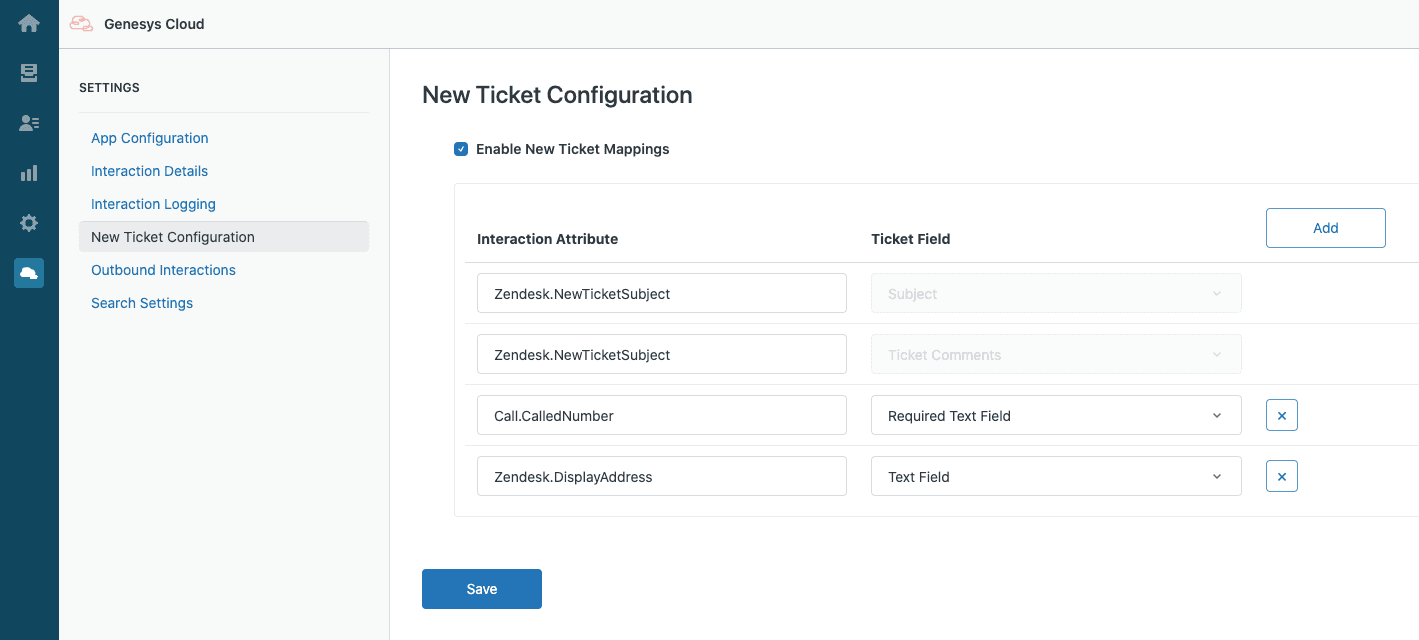
For the other settings, see Settings in Genesys Cloud for Zendesk.
For more information about the integration, see About Genesys Cloud for Zendesk.
[NEXT] Was this article helpful?
Get user feedback about articles.